

How to Manually Adjust Inventory Products in Invent ERP?
How to Manually Adjust Inventory Products in Invent ERP?
Manual Inventory Adjustment lets you correct on-hand quantities by adding or removing units for specific products, locations, or batches. It’s used to record discrepancies from audits, returns, damages, or lost stock and capture the reason behind each change. Using Manual Inventory Adjustment in Invent ERP keeps counts and valuation accurate, simplifies audits and returns, and ensures reports and reordering run on reliable data.
Step-by-Step Process
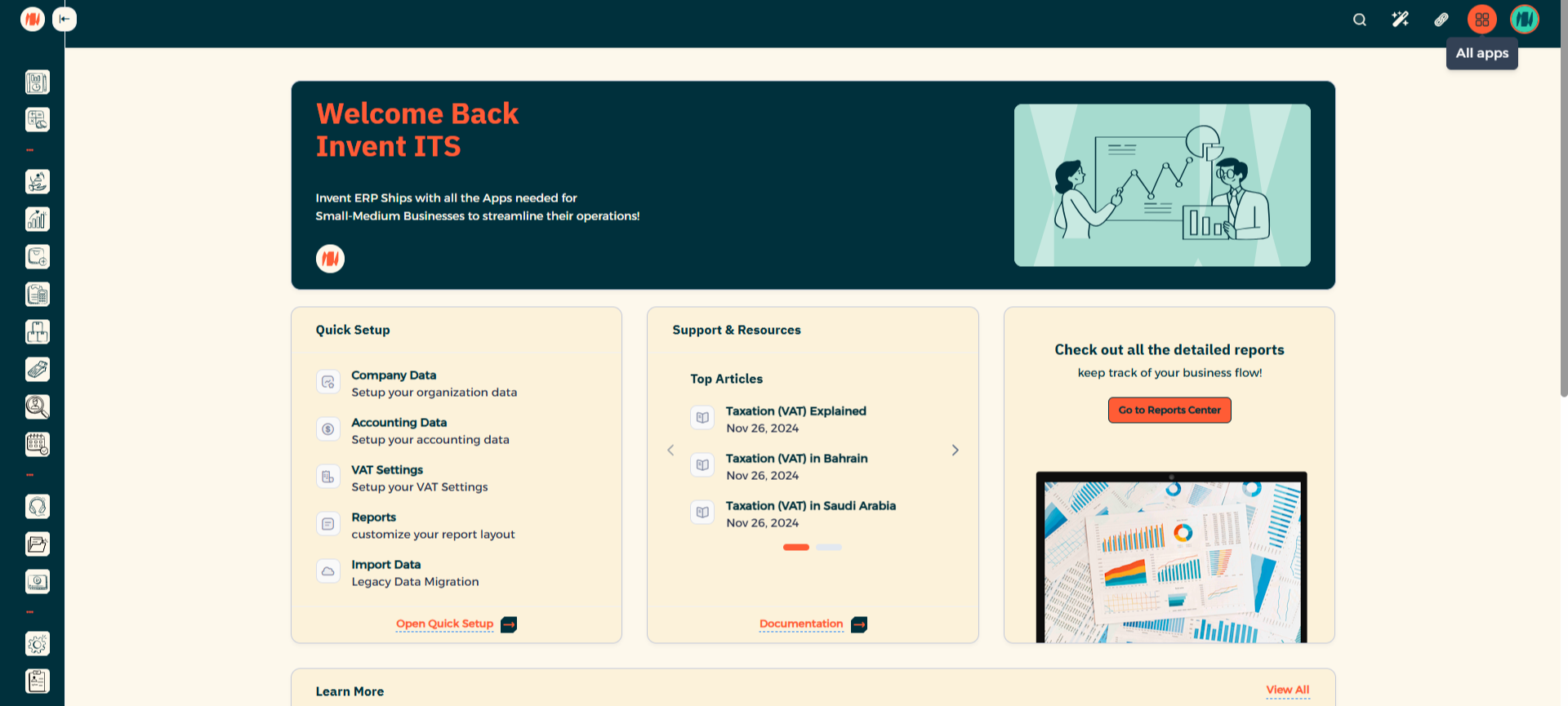
Step 1: Navigate to All Apps
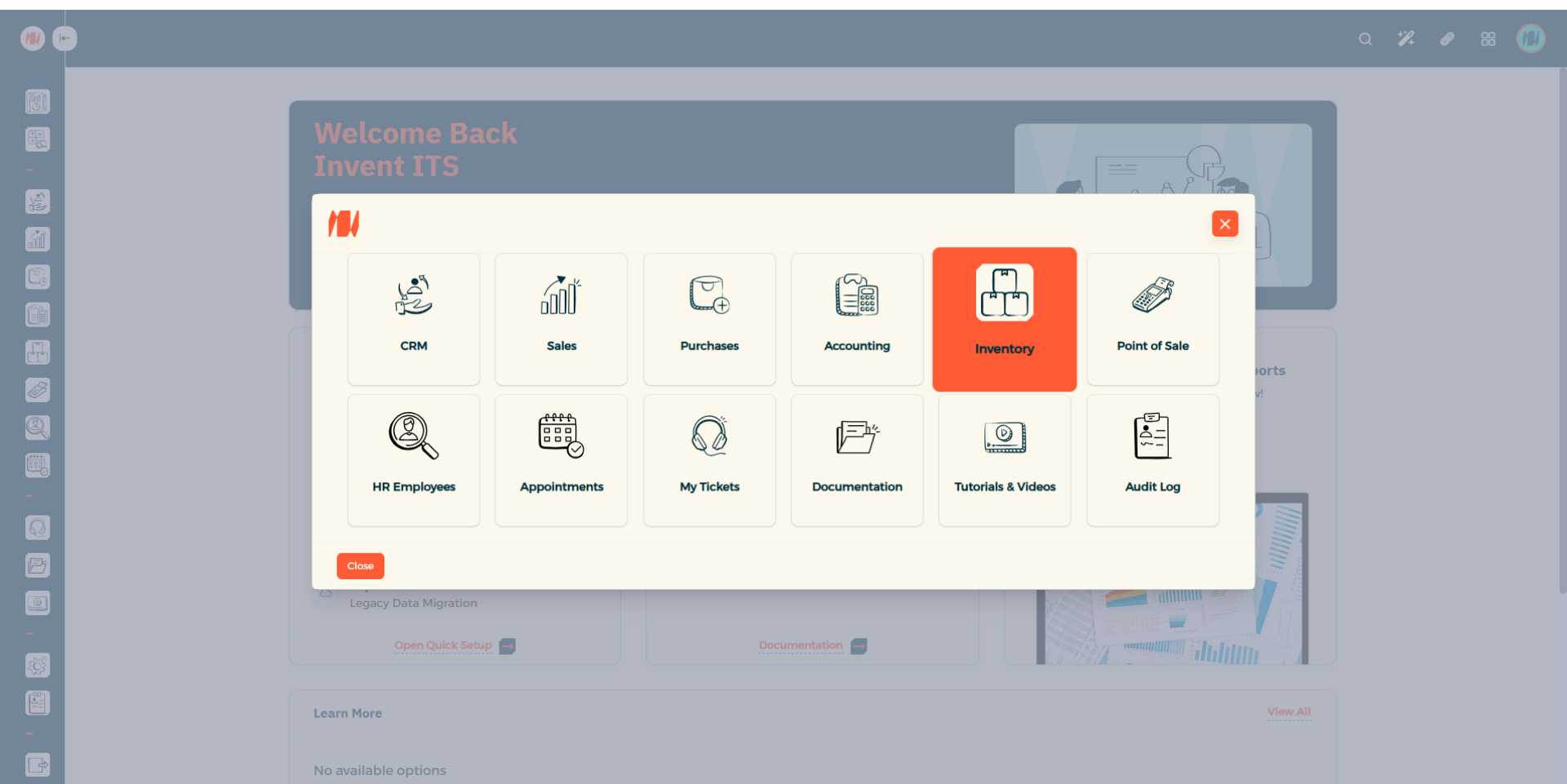
Step 2: Select Inventory
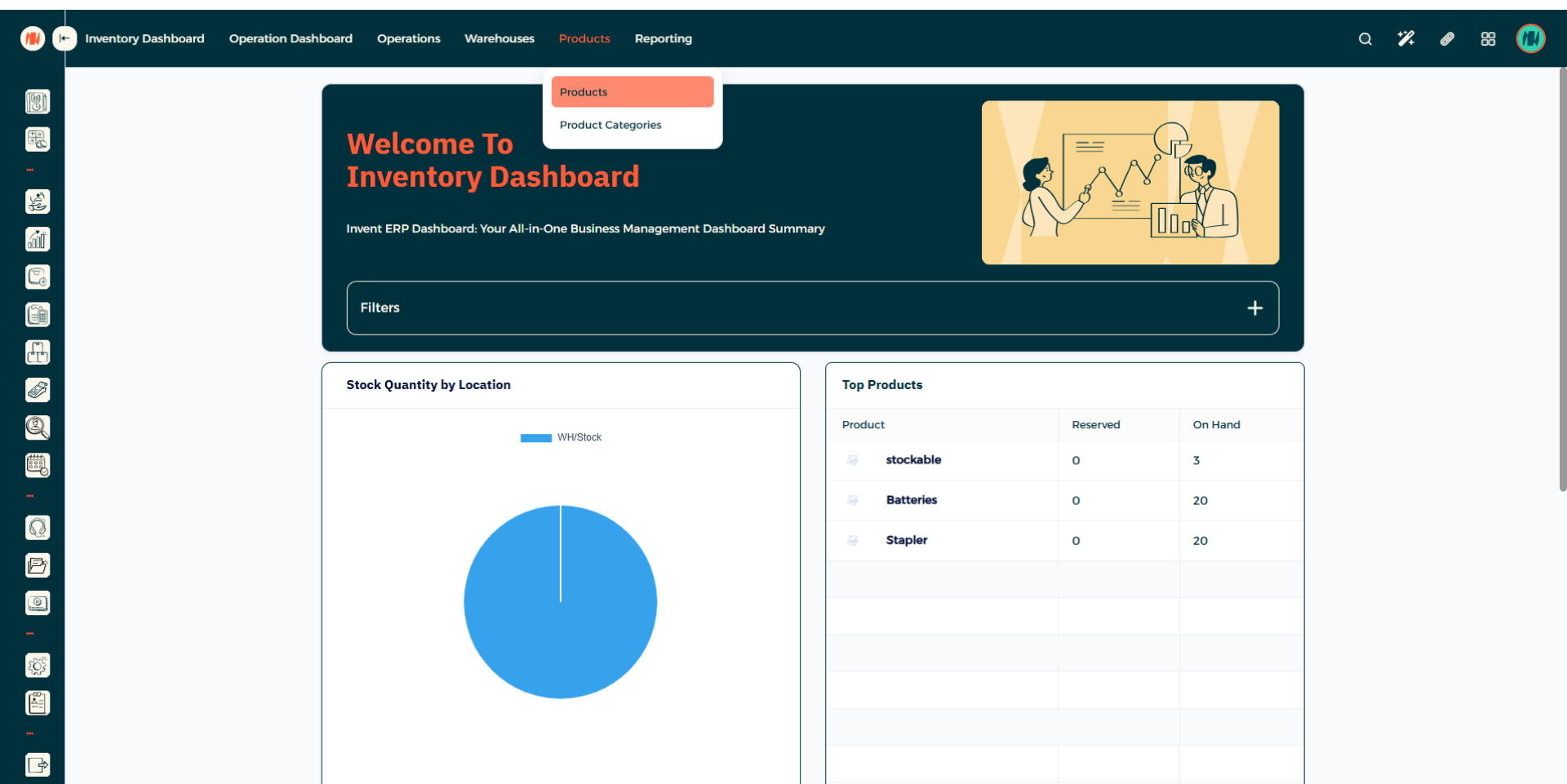
Step 3: Select Products
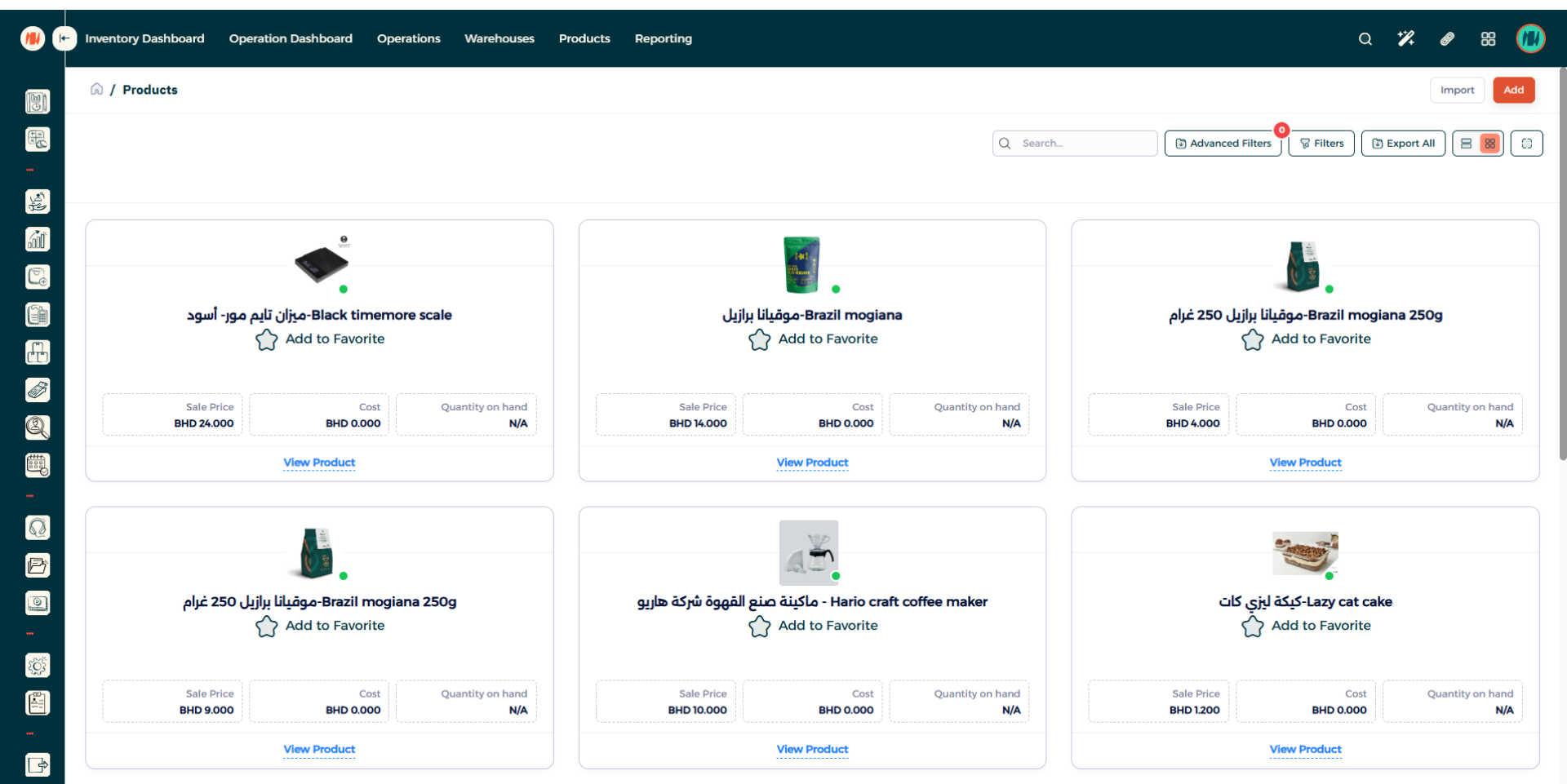
Step 4: Add a Product
Click on add, which is in the top right corner.
Step 5: Fill out Product details.
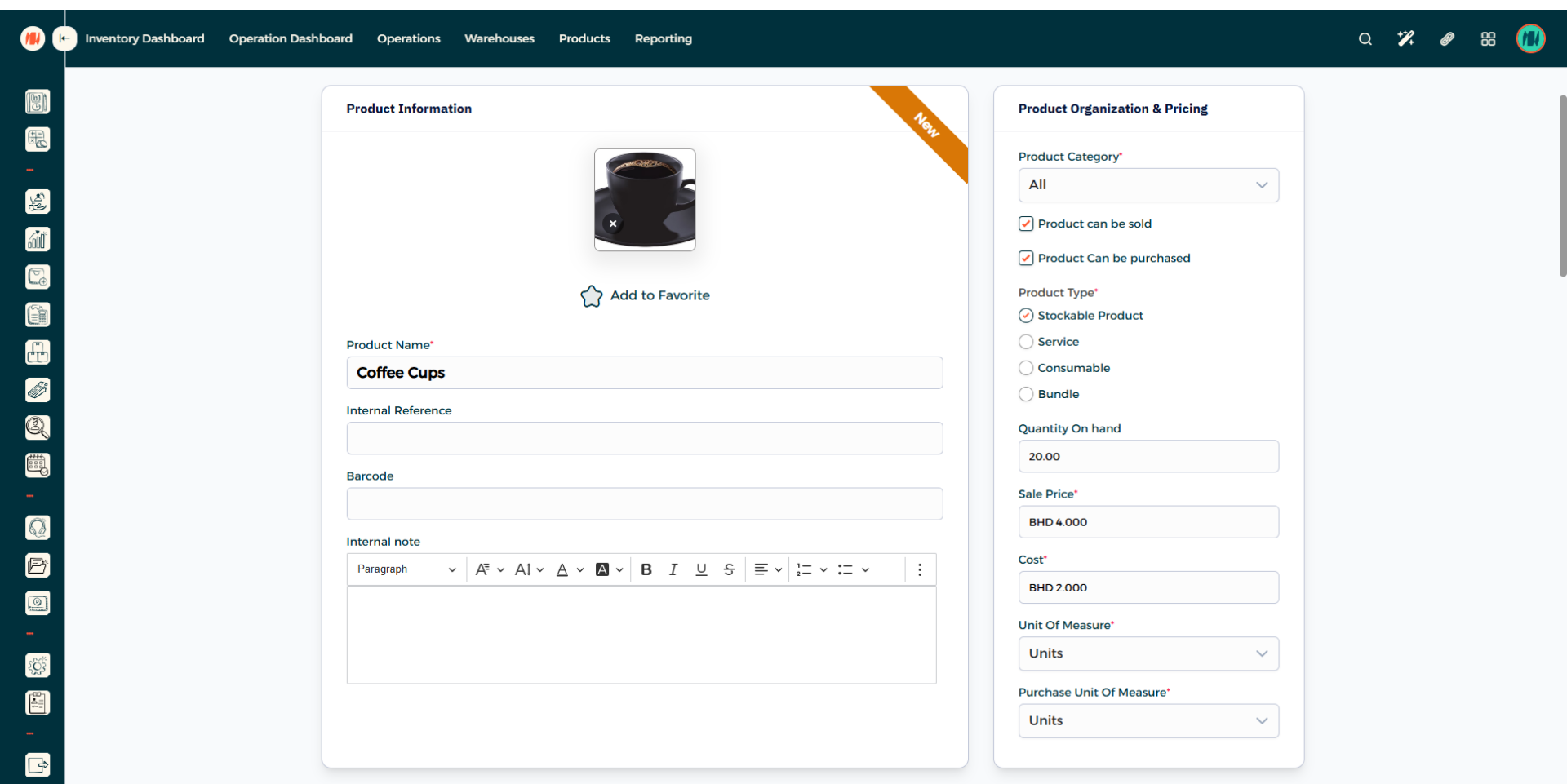
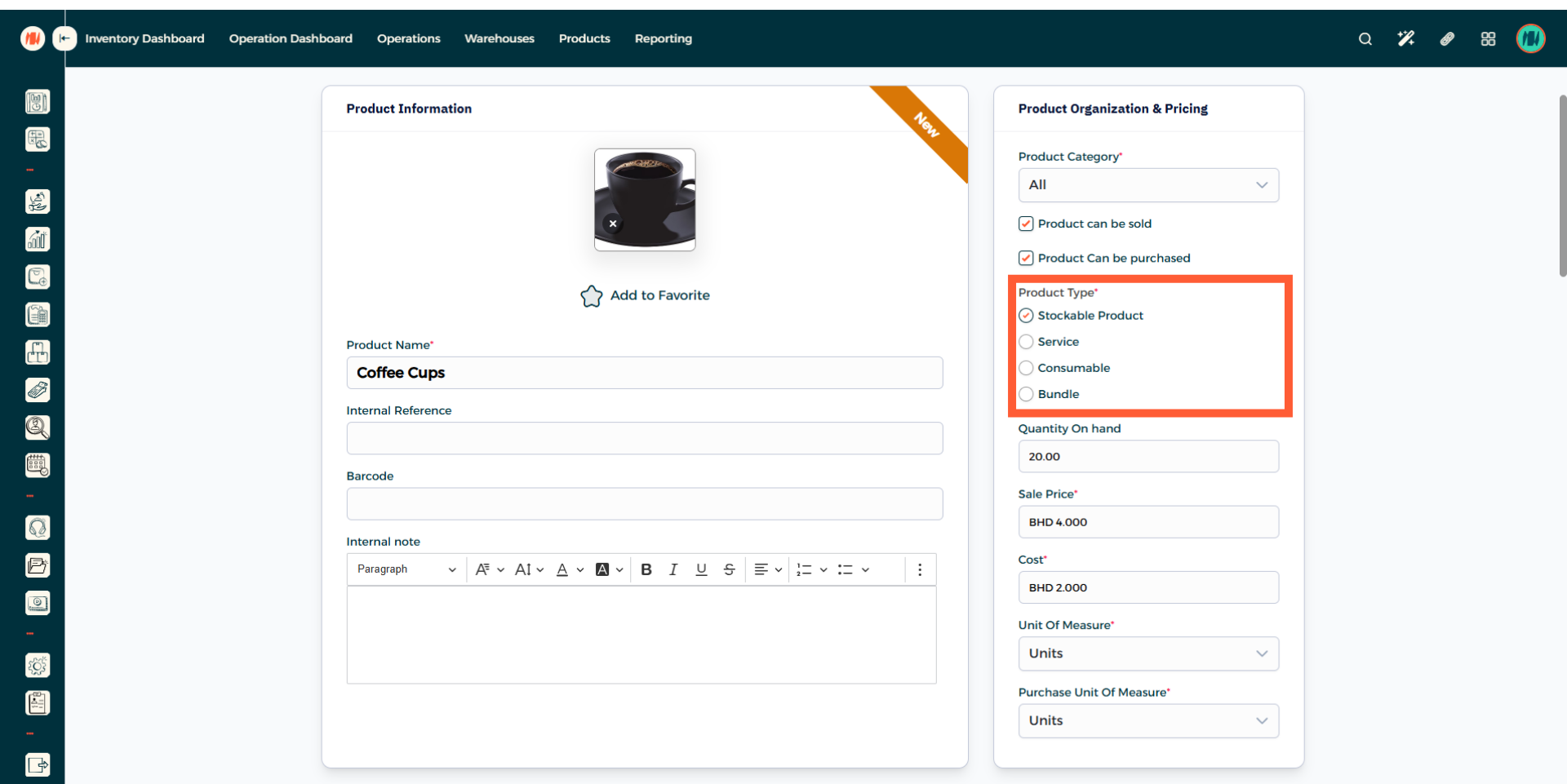
Step 6: Select Product Type
Make sure to select the product type as Stockable Product.
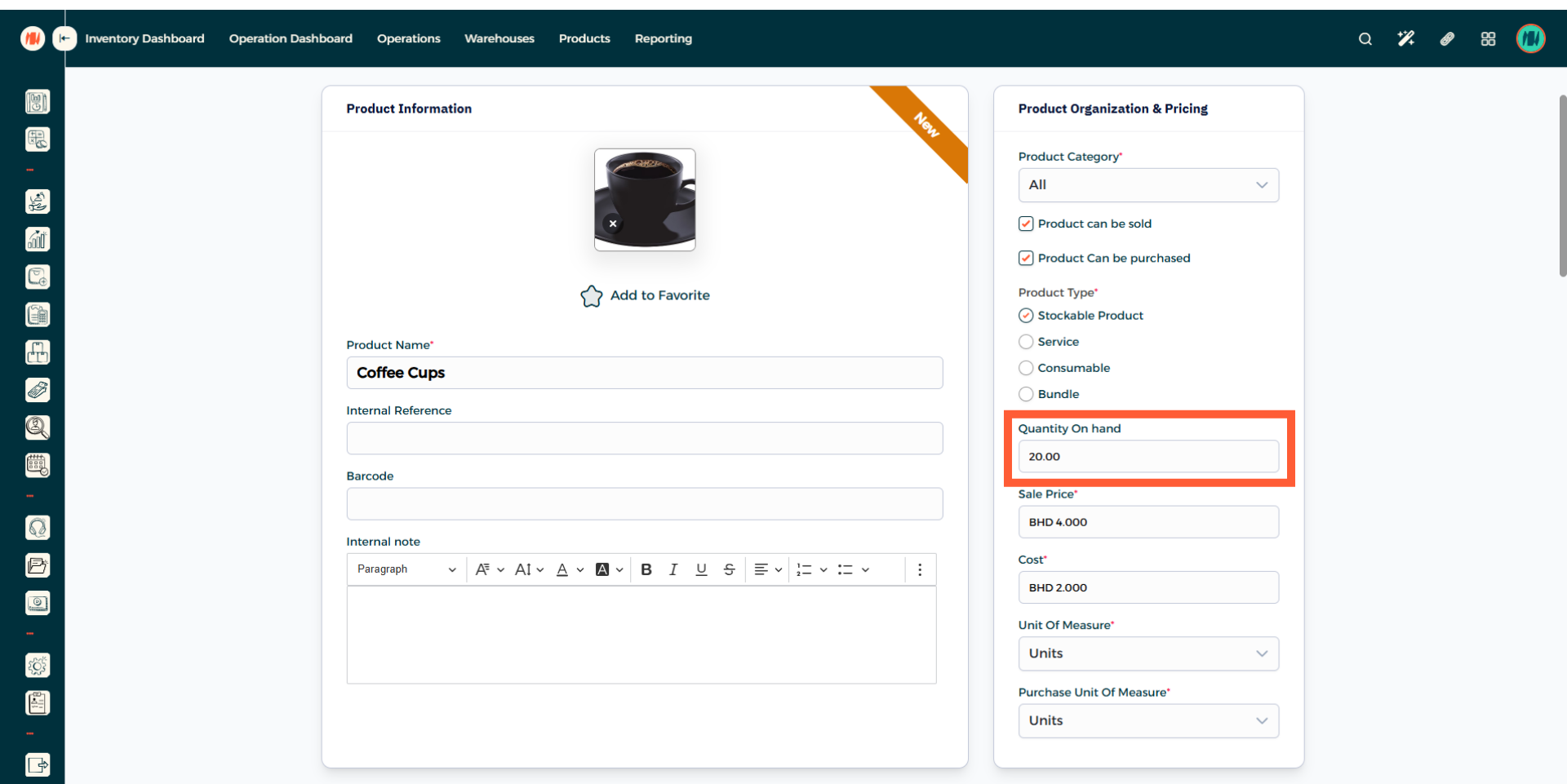
Step 7: Enter Quantity
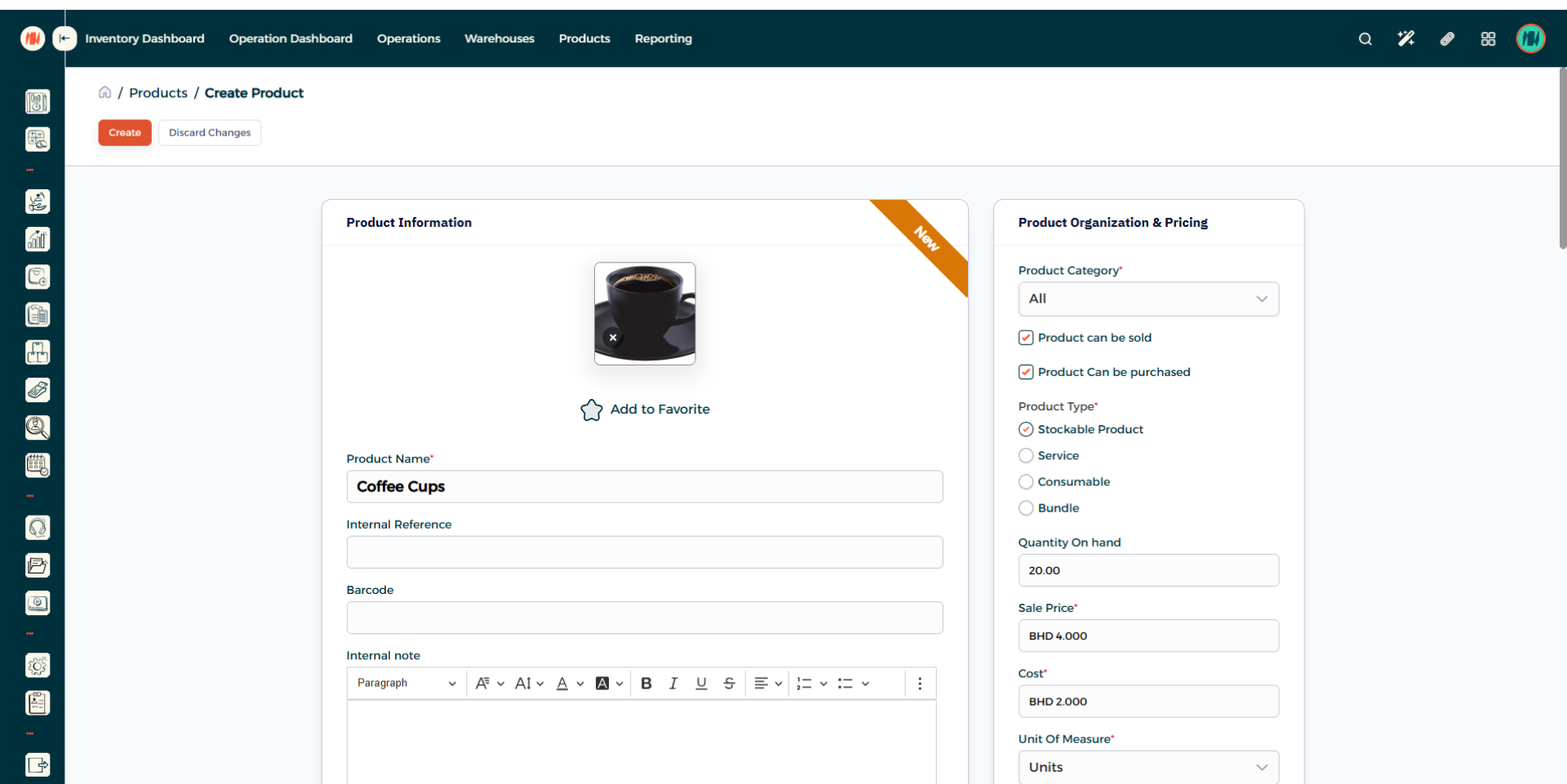
Step 8: Create Product
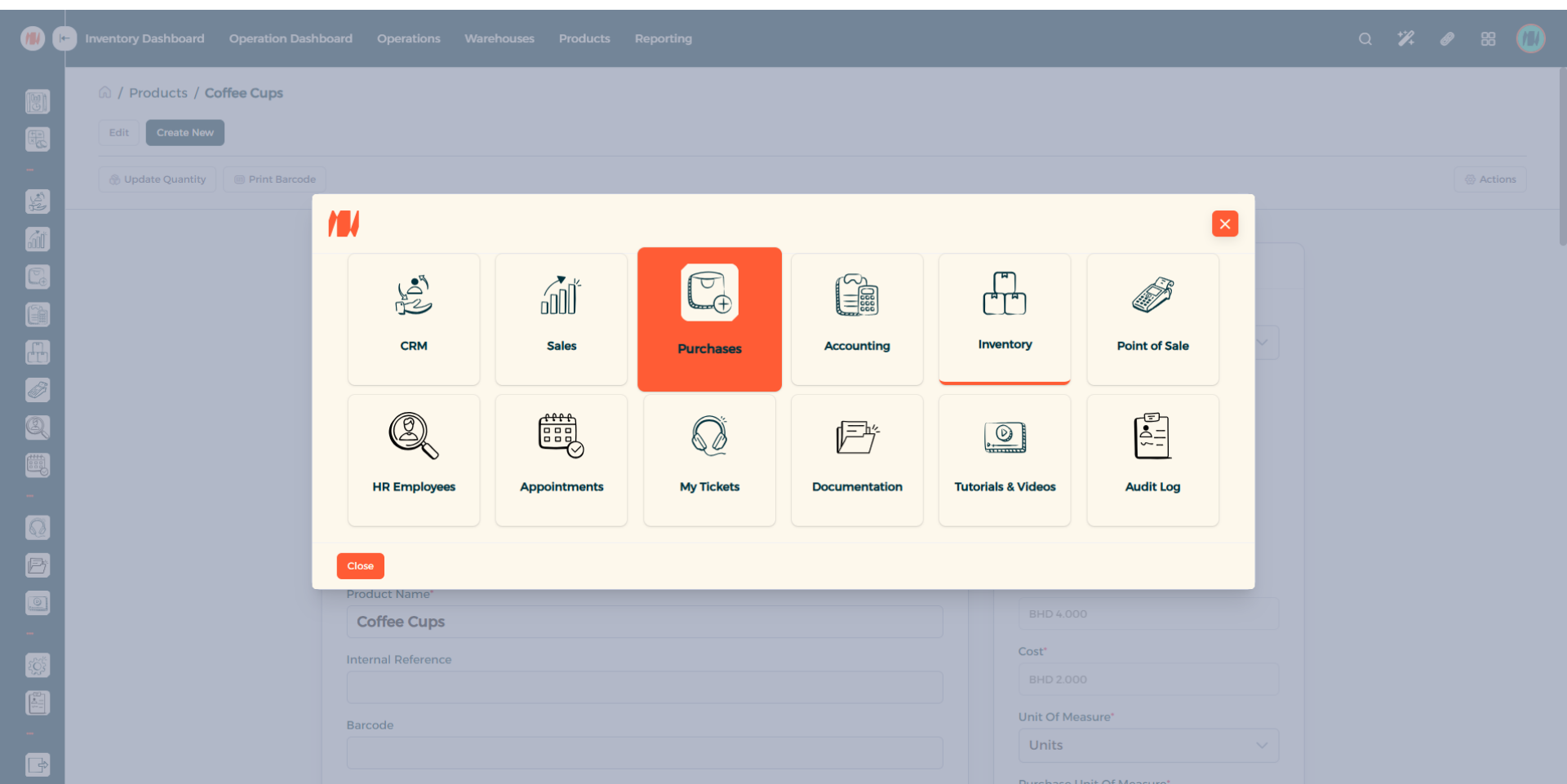
Step 9: Head to Purchases
After that is complete. In the top right click on all apps. Then Select Purchases.
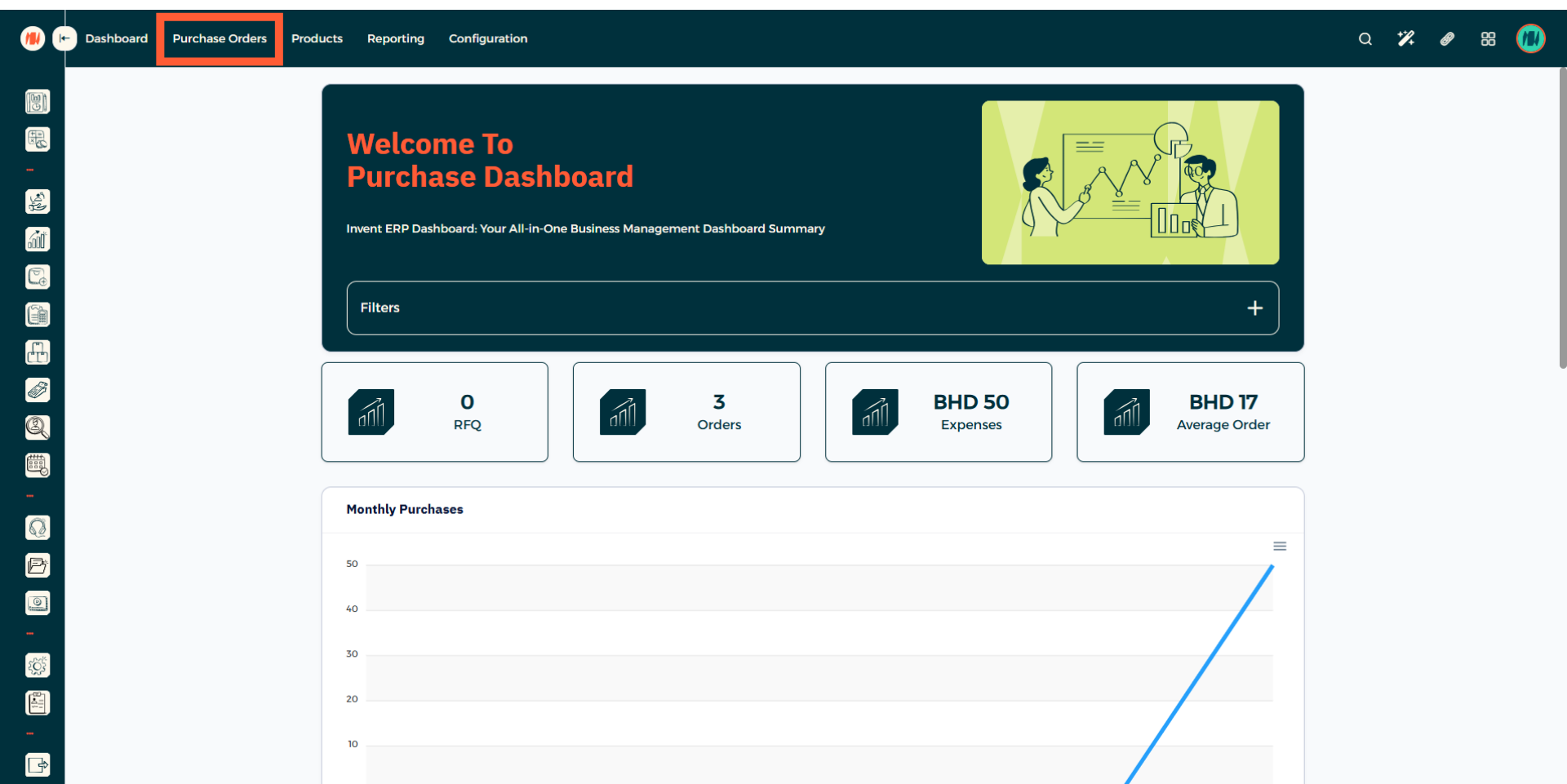
Step 10: Select Purchase Orders
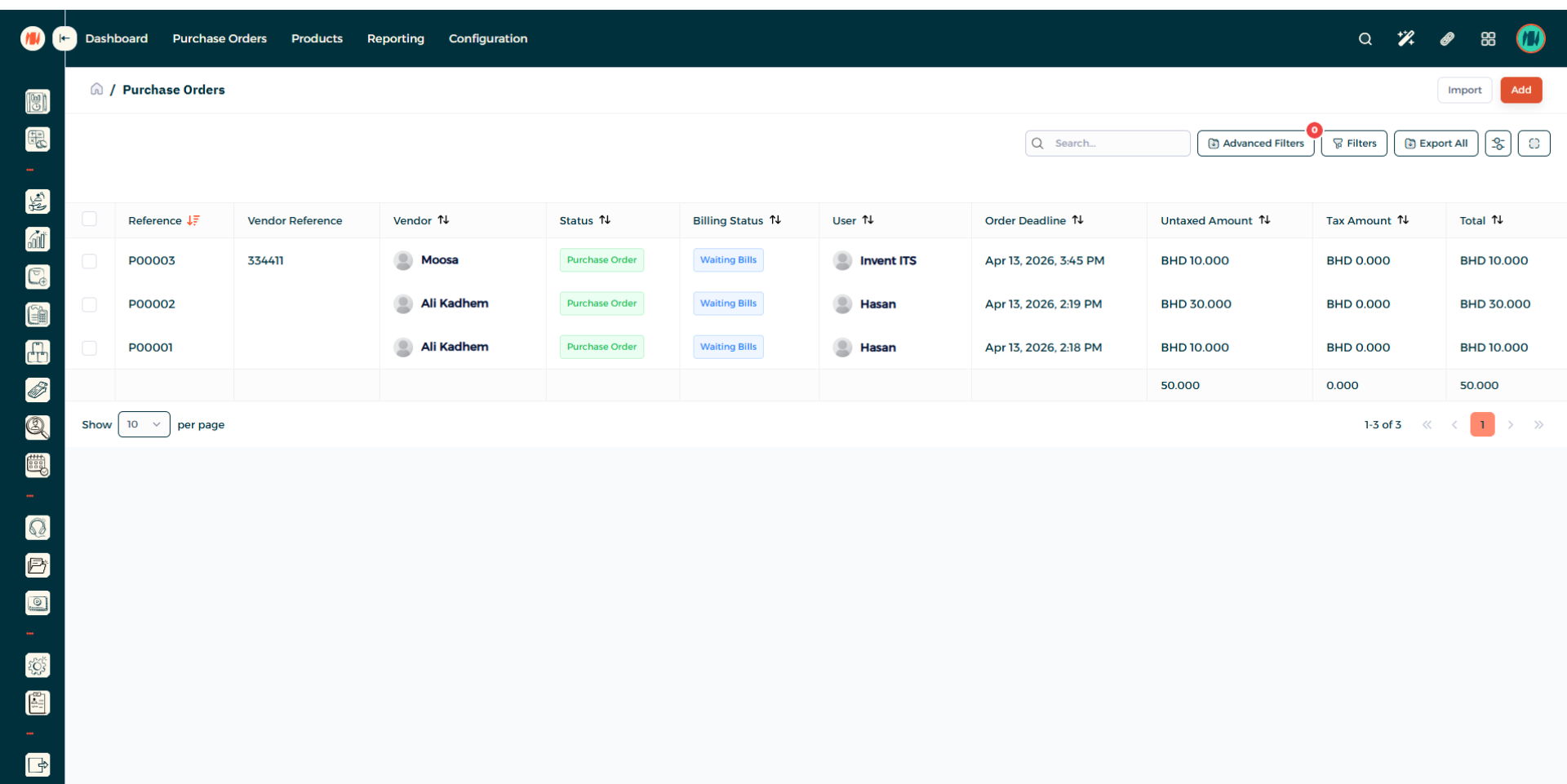
Step 11: Add Purchase Order
To create a purchase order. Press add in the top right corner.
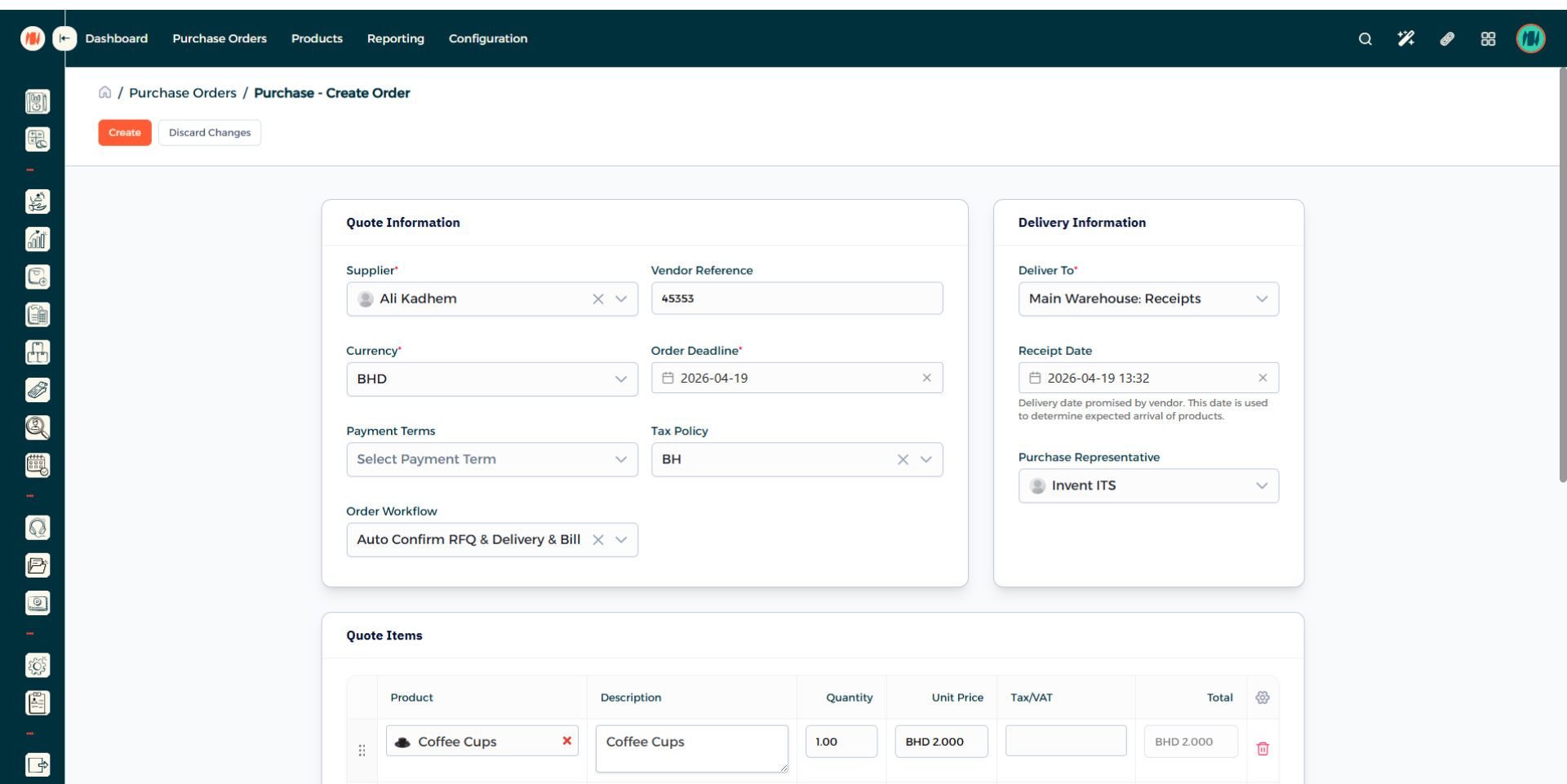
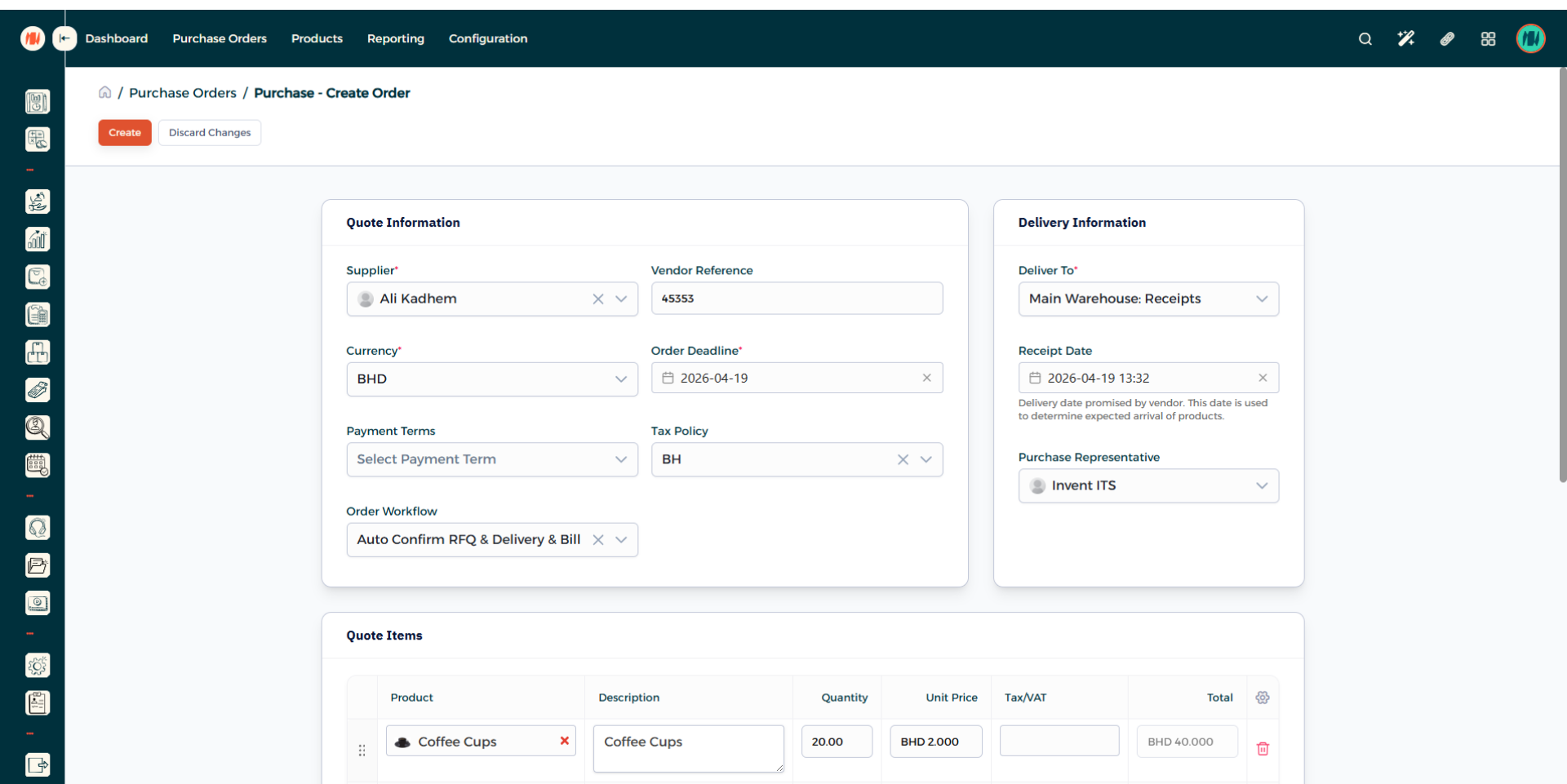
Step 12: Create Purchase Order
Fill in the necessary purchase order details.
Step 13: Add Product to Purchase Order
Select the product. Alongside the quantity you want.
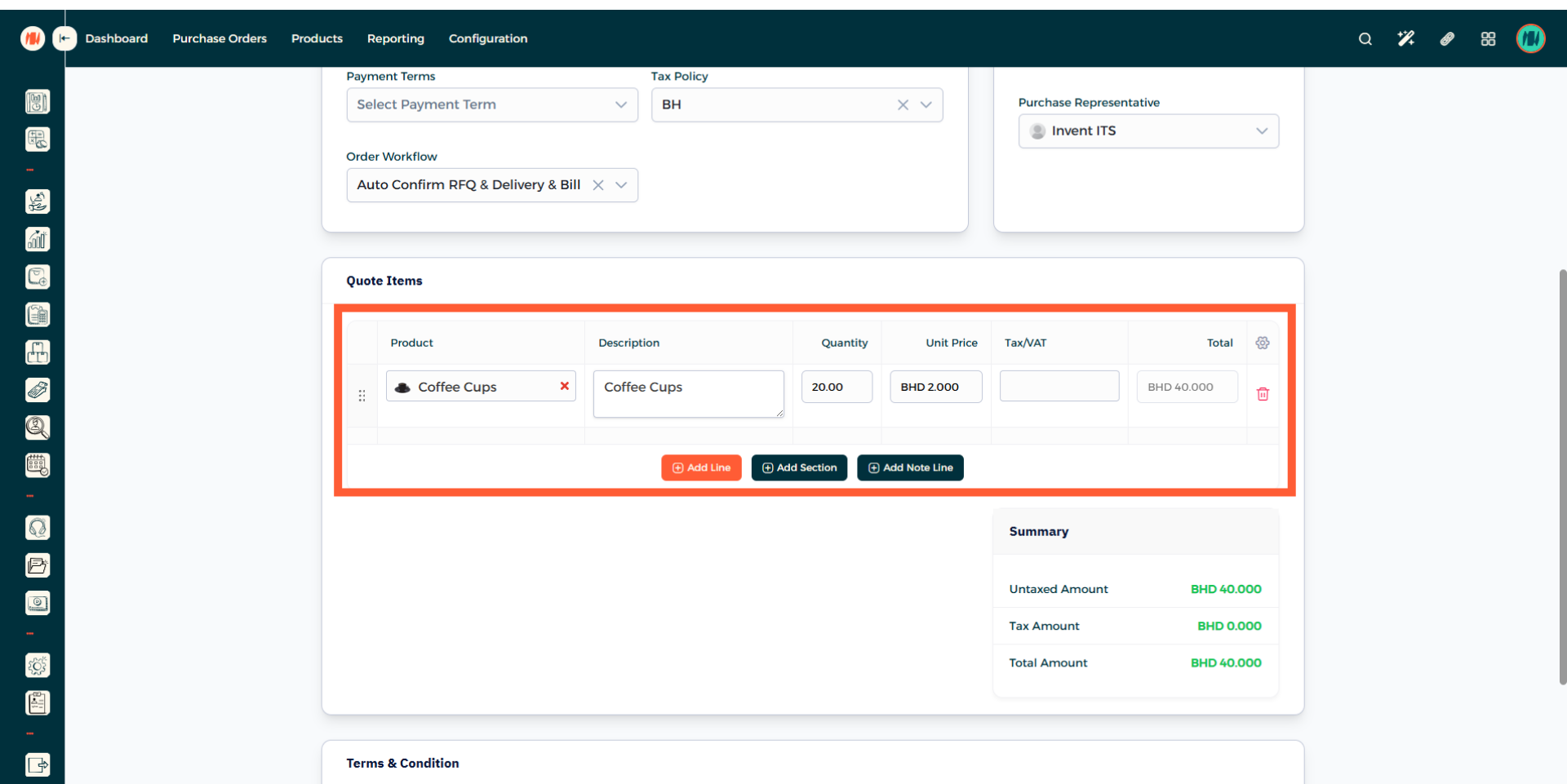
Step 14: Create Purchase Order
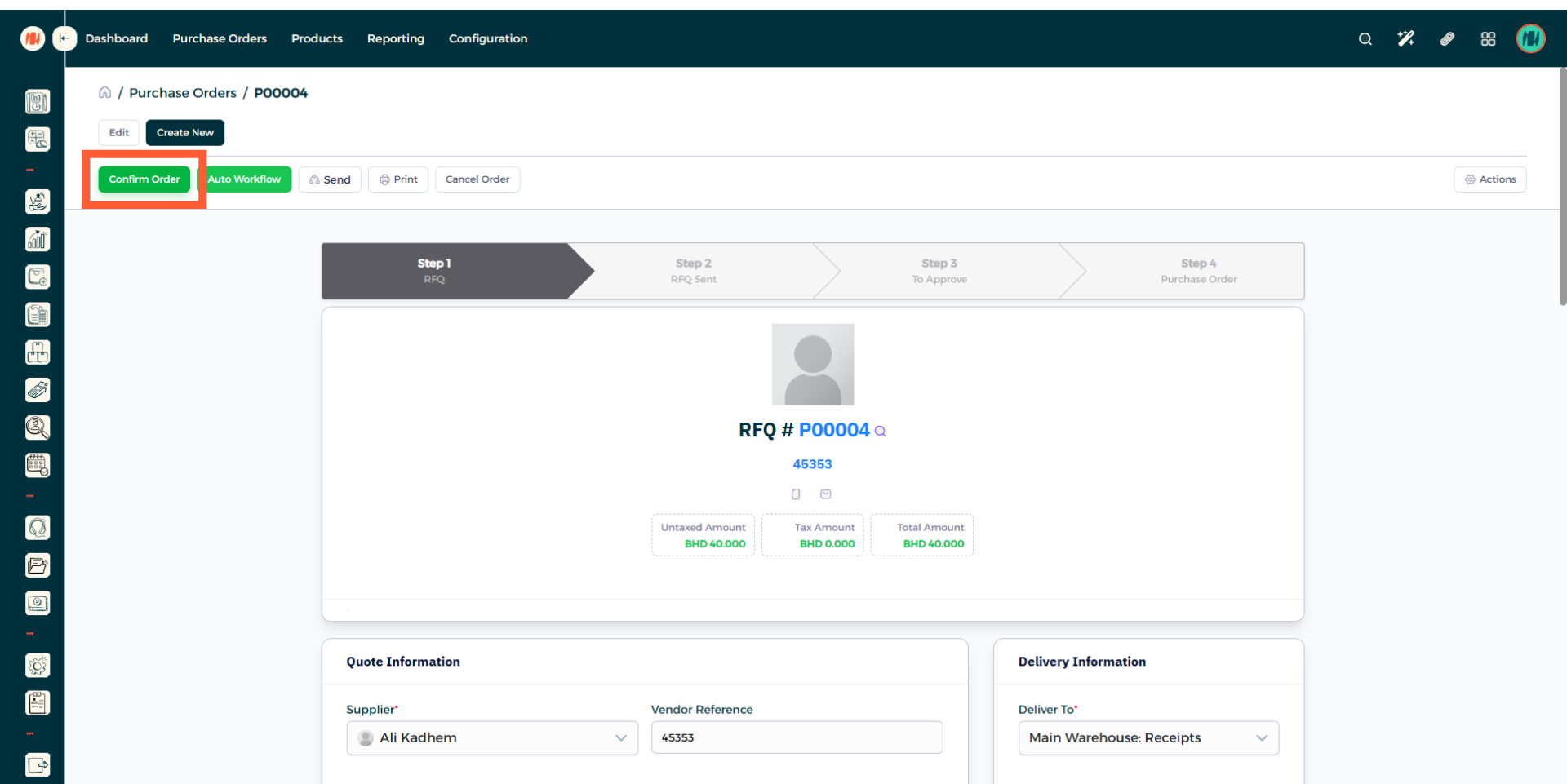
Step 15: Confirm Purchase Order
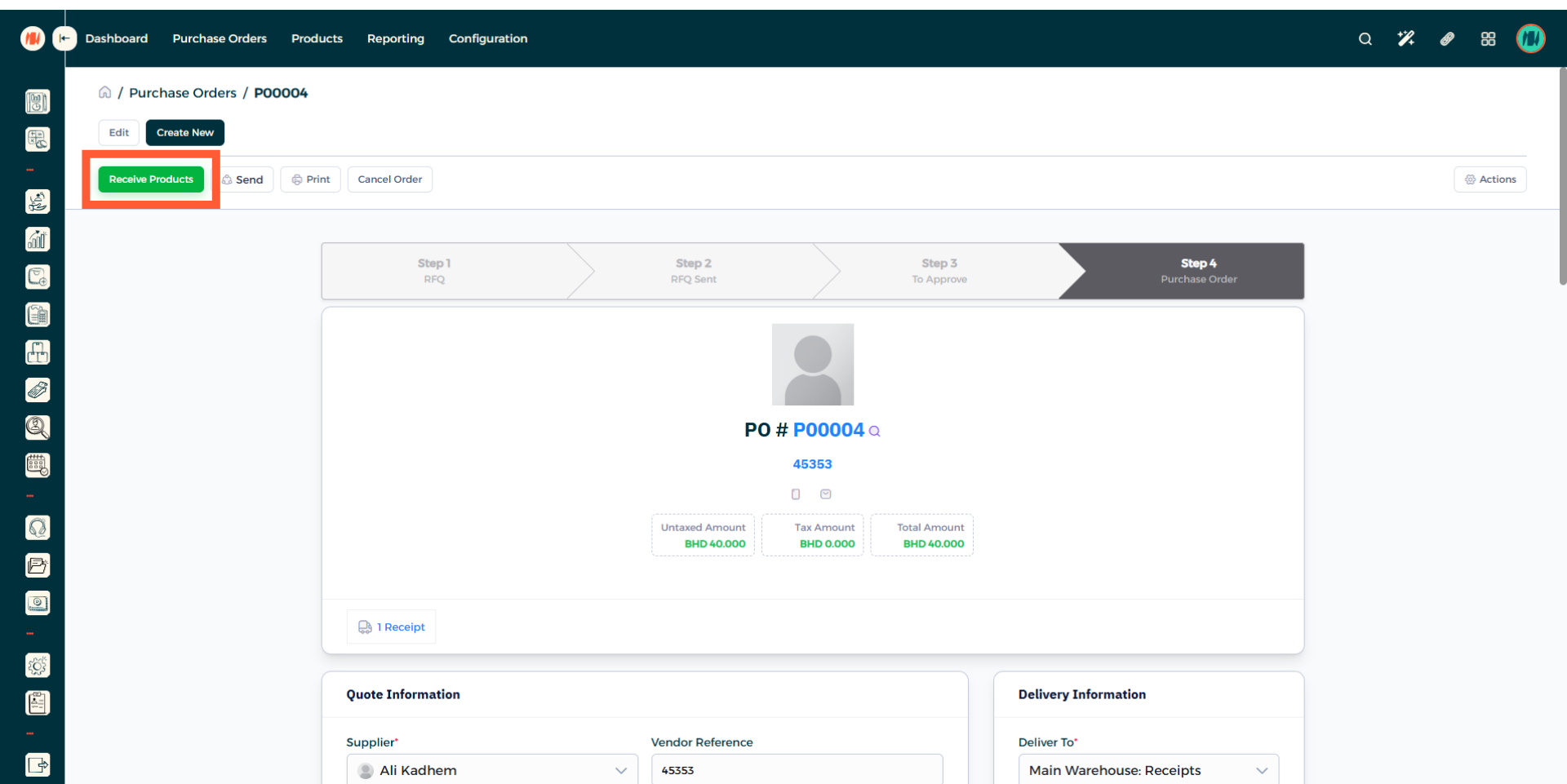
Step 16: Receive Products
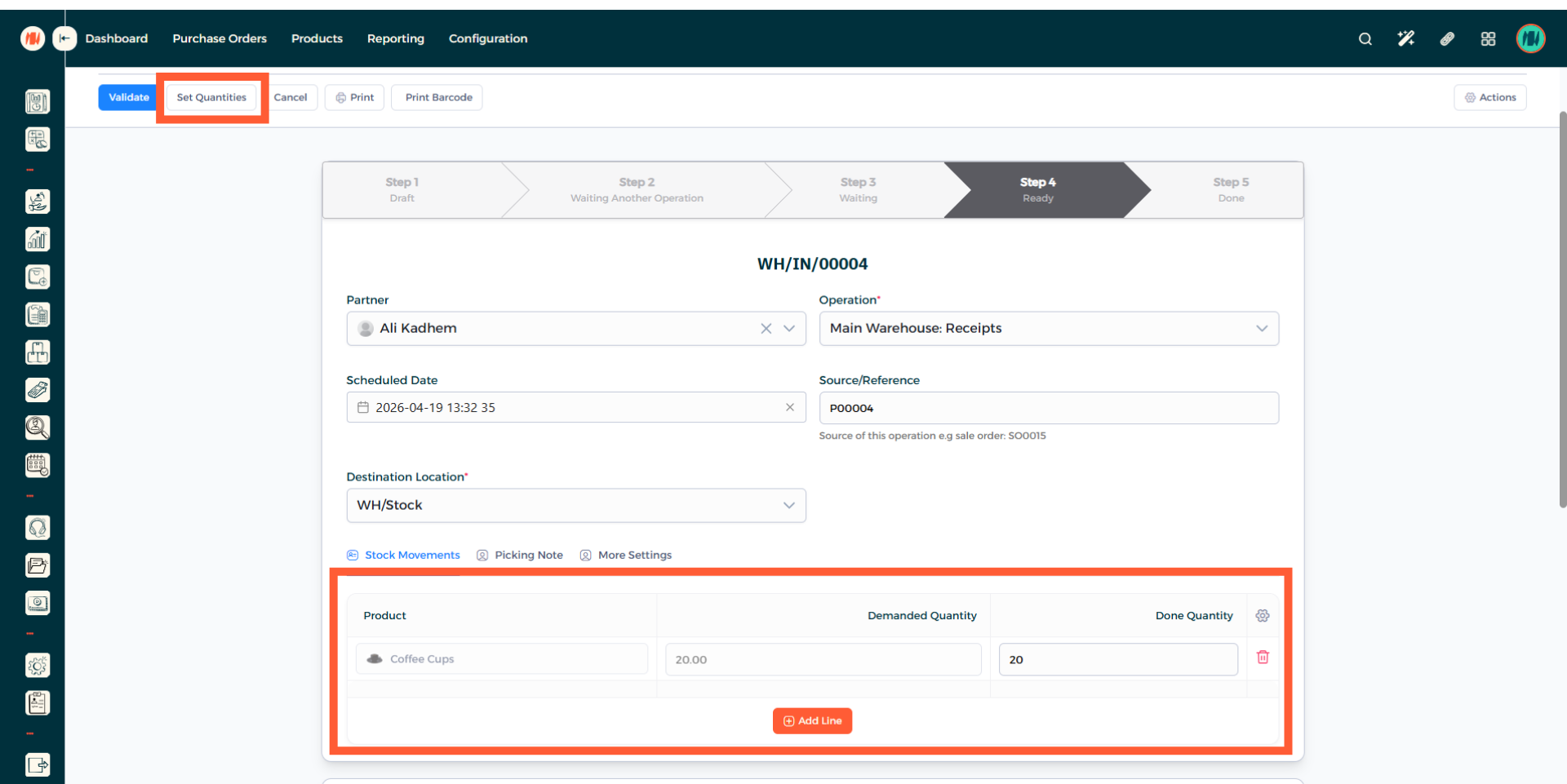
Step 17: Set Quantities then Validate
Make sure the demanded and done quantities match. When there is no difference and all is good, click on validate (blue button).
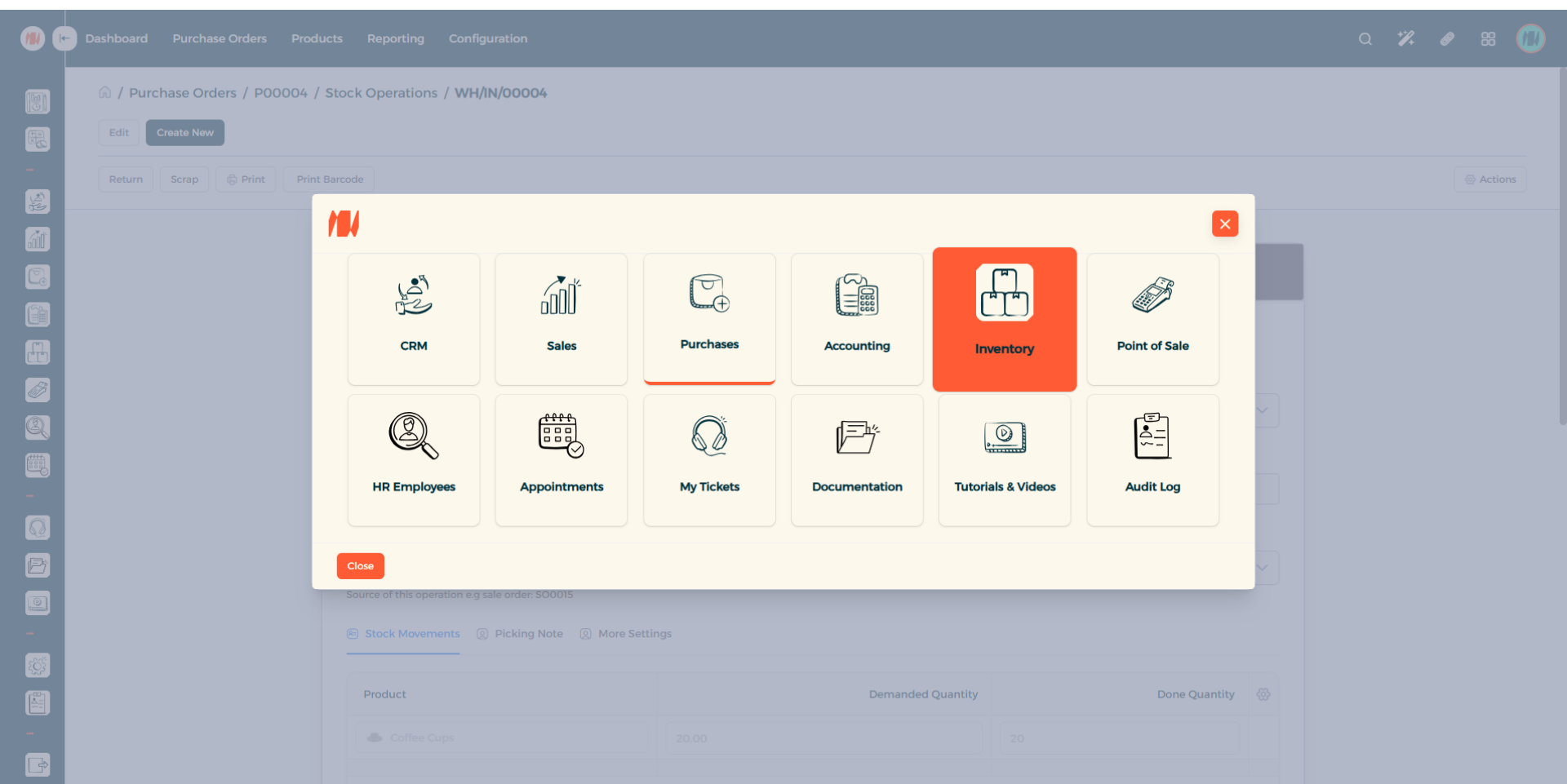
Step 18: Navigate to Inventory
When that is done. Click on all apps in the top right corner. Then Select Inventory.
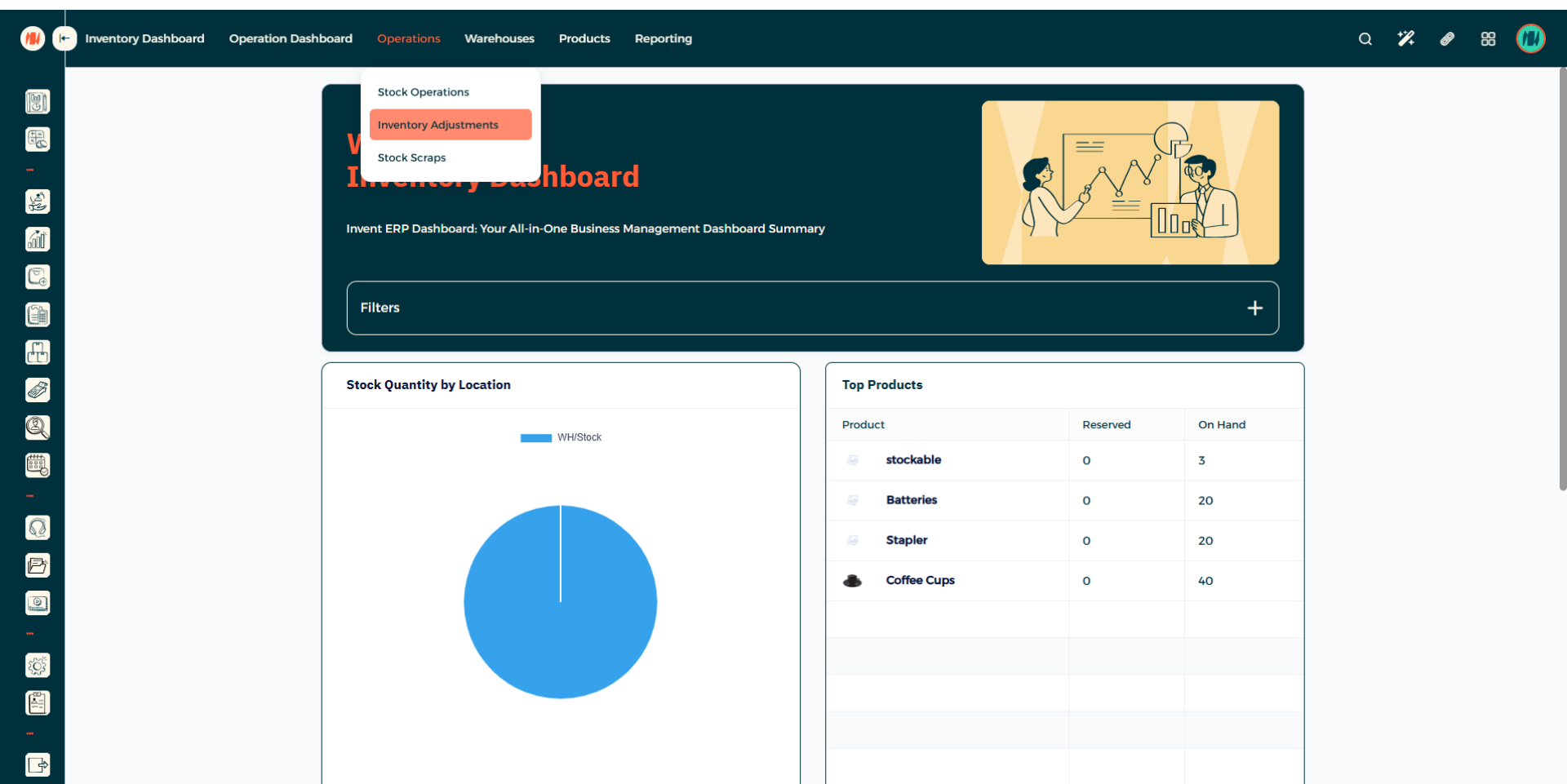
Step 19: Head to Inventory Adjustments.
In the Inventory page. Select Operation then Inventory Adjustments.
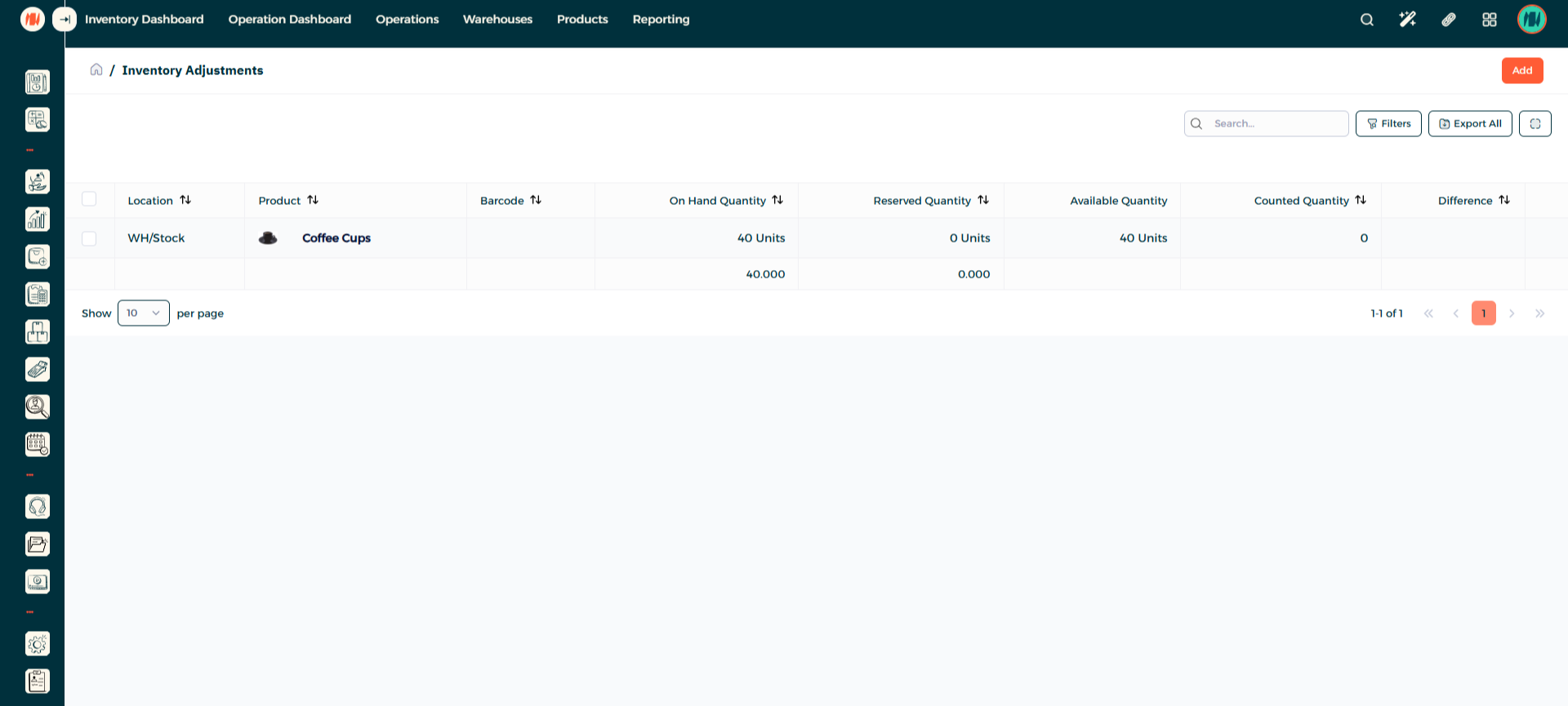
Step 20: Manually Adjust Inventory
Select the product to add a quantity.
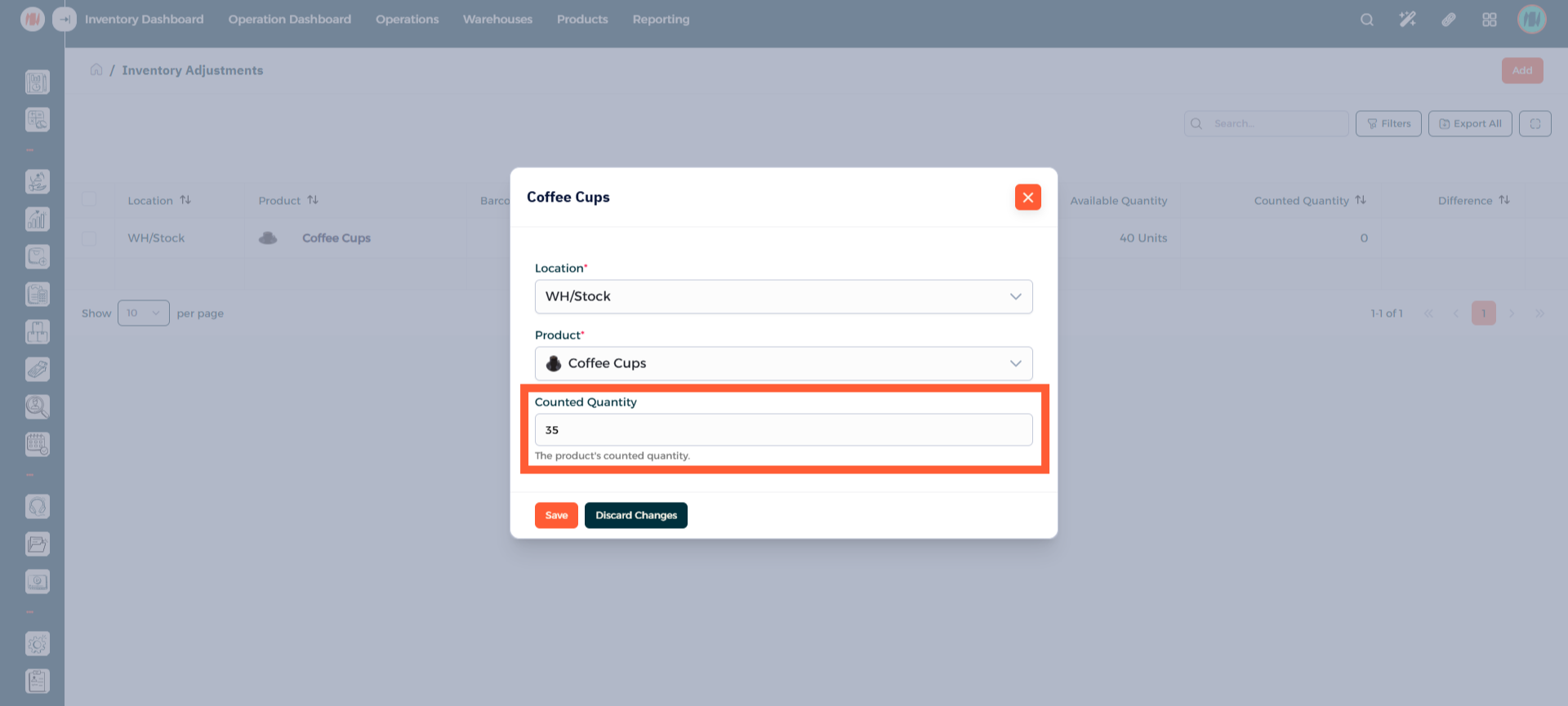
Step 21: Add Counted Quantity
Add the counted quantity of the product. After that, press Save.
Step 22: Apply Adjustment
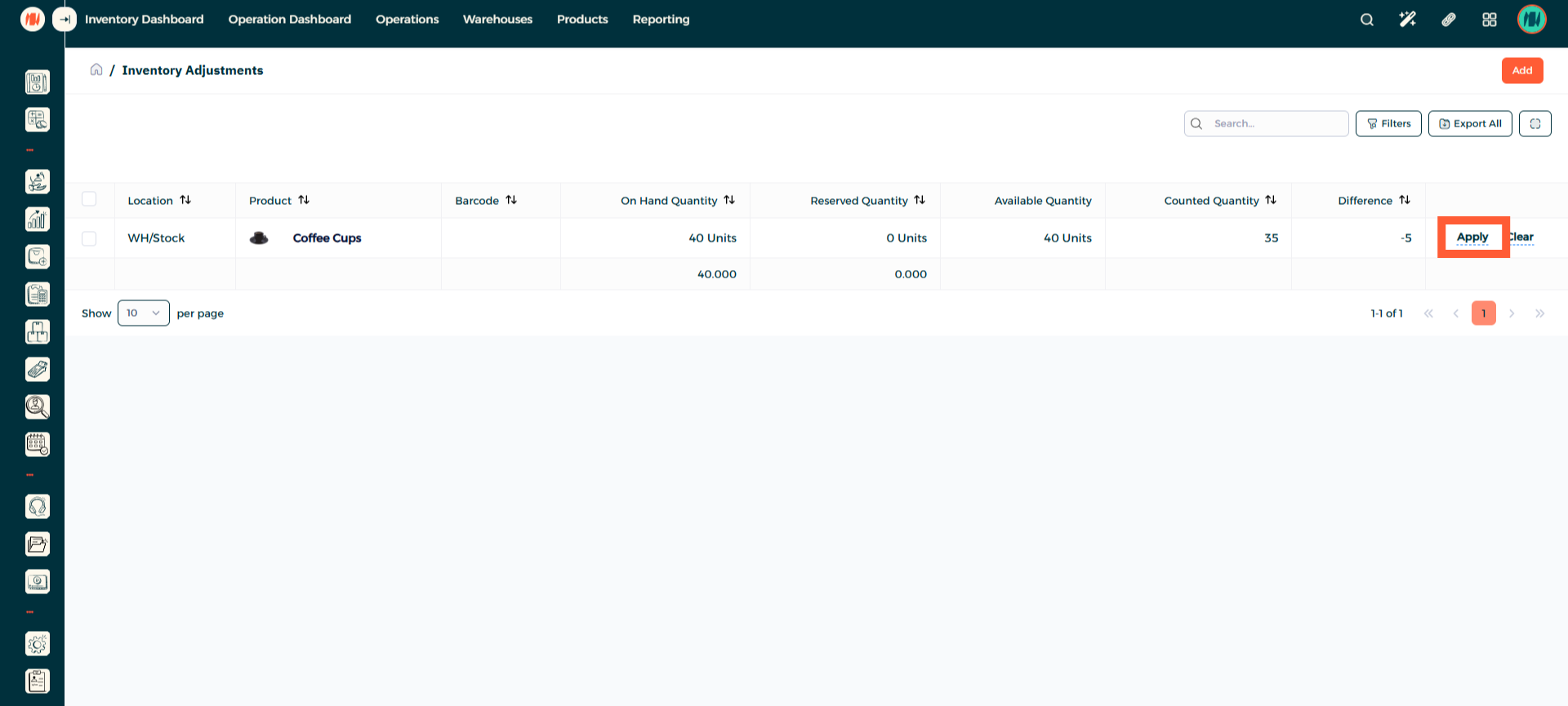
Apply the difference to ensure all products are accounted for. Then that's it!
Notes & Tips
- Always double check counts for large or high-value adjustments to prevent errors or further issues in the future.
- Choose the right unit of measure to ensure the unit matches how you stock and sell the products. When an inappropriate measure is used it can cause incorrect quantities, pricing errors, and reconciliation issues.
Frequently Asked Questions (FAQ)
Q: What products do I add?
A: Add any product that is relevant to your business and has the appropriate unit of measure.
Q: How do I know I have missing products?
A: Check the difference between the order quantity and counted quantity in the inventory adjustments page to see if you have any missing products.